 Raymond Yima
The Problem With WordPress Out of the Box
A one-second delay in page load time reduces conversions by 7%. At three seconds, 53% of mobile visitors have already left. By the time your page finishes loading, a significant portion of the people you paid to attract through ads, SEO, referrals, or word of mouth are gone.
The most common cause isn’t bad hosting. It isn’t a poorly designed theme. It’s a WordPress installation running on default settings that were never built for performance.
WordPress is engineered for accessibility, not optimization. Its out-of-the-box configuration is designed to work broadly across millions of different environments, it makes no assumptions about your caching strategy, image handling, database health, or PHP version. That approach makes it easy to install. It also means every installation ships with performance gaps that require deliberate intervention to close.
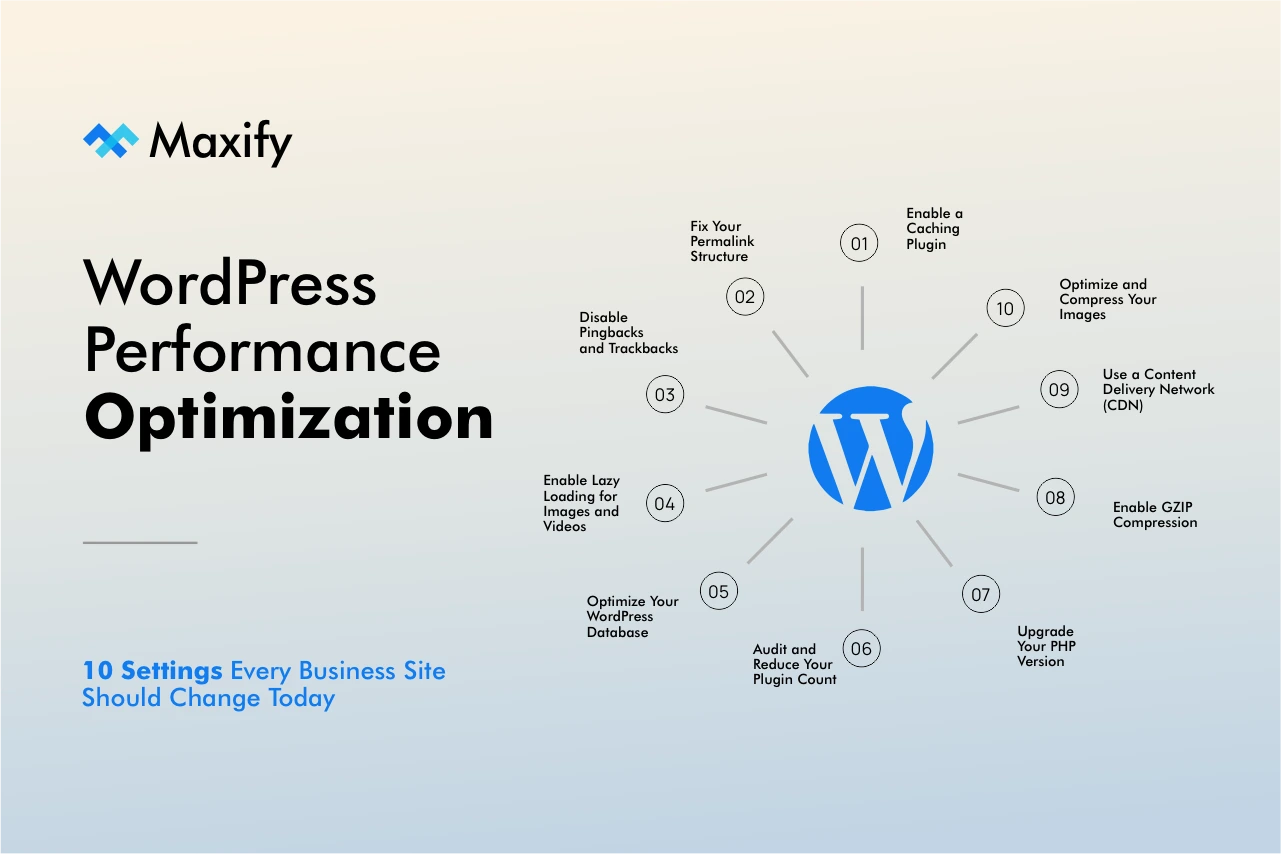
This post covers the 10 configuration changes with the most direct impact on WordPress performance. Some take under two minutes. Some require a plugin or a brief code edit. All of them are worth doing, and if you haven’t done them yet, your site is carrying unnecessary load that your competitors may not be.
Before You Touch Anything: Back Up First
Before changing any WordPress configuration, back up your site completely. Use UpdraftPlus, All-in-One WP Migration or WPvivid Backup & Migration to create a full backup, files and database stored off your server in Google Drive, Dropbox, or Amazon S3.
This takes 10 minutes. It protects hours of potential recovery work. Do not skip it.
Enable a Caching Plugin
Without caching, every page load on your WordPress site triggers a chain of PHP processes and database queries, generating the page from scratch for every single visitor, every single time.
Caching solves this by saving a static version of each page and serving that pre-built HTML file to visitors directly. The result: dramatically faster load times and significantly less server load.
How to implement: Install WP Rocket (paid, recommended for most business sites) or a free alternative W3 Total Cache, WP Super Cache, or LiteSpeed Cache depending on your host. After installation, enable page caching and browser caching in the settings. WP Rocket applies sensible defaults automatically, requiring minimal configuration to be effective.
Impact: Caching alone typically reduces page load times by 30–60% on sites that haven’t addressed it. It is the single highest-leverage change on this list.
Optimize and Compress Your Images
Images are the largest contributor to page weight on most WordPress sites. A homepage with three uncompressed 4MB photos will load slowly regardless of how well everything else is configured, because no amount of caching or compression compensates for raw file size at the source.
There are two parts to this fix: compression and correct sizing.
Compression: Install Smush or ShortPixel. Both compress images automatically on upload and can bulk-optimize your existing media library. Enable WebP conversion if your host supports it, WebP files run 25–35% smaller than JPEGs at equivalent quality with no visible difference to the visitor.
Sizing: Go to Settings → Media and check your theme documentation for the actual image dimensions it uses. If your theme displays featured images at 800px wide but WordPress is generating them at 1024px, you are delivering 30% more data than necessary on every page load. Set thumbnail, medium, and large sizes to match your theme’s actual display values. For images already in your media library, use the Regenerate Thumbnails plugin to rebuild them at the corrected dimensions.
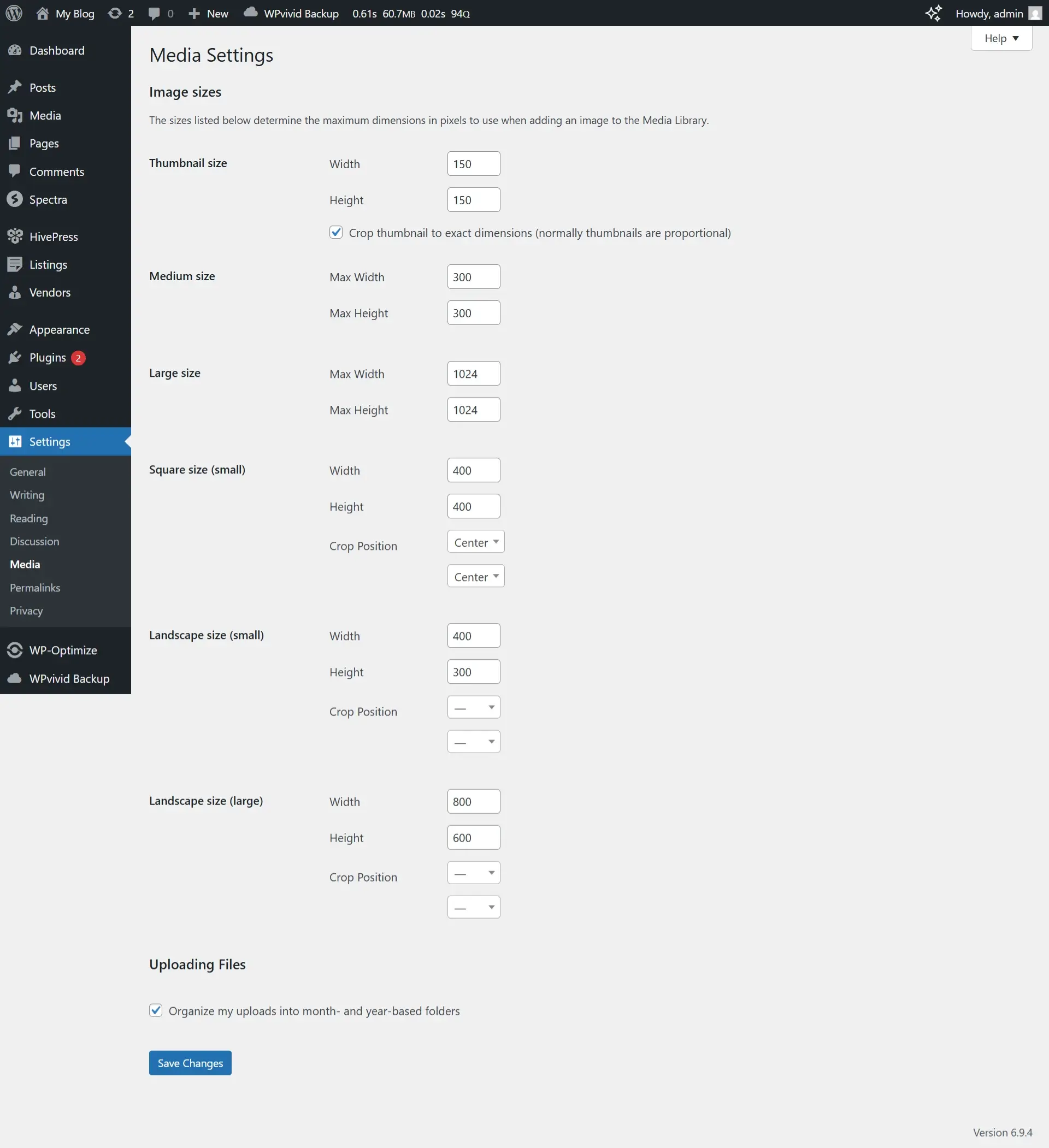
Impact: Image optimization typically reduces total page size by 40–70% on sites that haven’t addressed this. Combined with caching, this produces the majority of performance gains available without touching server configuration.
Use a Content Delivery Network (CDN)
A CDN distributes your static files, images, CSS, JavaScript across servers in multiple geographic locations. When a visitor loads your site, those assets are served from the node physically nearest to them rather than from your origin server.
If your server is in London and your customer is in Lagos, every asset request travels across the Atlantic. For businesses serving audiences across Africa, Europe, and North America simultaneously, this latency is not negligible, it is a structural performance penalty on every page load.
How to implement: Cloudflare offers a free CDN tier compatible with any WordPress site and takes under 30 minutes to configure. BunnyCDN is a low-cost alternative with strong performance across African and North American regions. Most caching plugins integrate directly with both.
Impact: CDN implementation reduces asset load times by 40–80% for geographically distributed audiences. For any site serving international visitors, this is infrastructure not optional.
Enable GZIP Compression
GZIP compresses your site’s files, HTML, CSS, and JavaScript before transmitting them from your server to the visitor’s browser. The browser receives a smaller package, decompresses it in milliseconds, and renders the page.
It costs nothing to enable, requires no ongoing maintenance once active, and delivers compression ratios of 60–80% on transferable file size.
How to implement:
Via plugin: WP Rocket or W3 Total Cache handle GZIP automatically.
Via .htaccess: Add the following to your .htaccess file directly:
<IfModule mod_deflate.c>

AddOutputFilterByType DEFLATE text/html text/plain text/xml text/css text/javascript application/javascript

</IfModule>
After saving, verify it’s active using GTmetrix, Google PageSpeed Insights, or giftofspeed.com/gzip-test. Some hosts enable GZIP at the server level by default, confirm rather than assume.
Impact: 60–80% reduction in transferable file size. Combined with caching, this is one of the highest-leverage, lowest-effort changes on this list.
Upgrade Your PHP Version
WordPress runs on PHP, and the version your server uses matters more than most site owners realize.
PHP 8.2 and 8.3 execute WordPress code up to 3x faster than PHP 7.4 which a significant percentage of WordPress installations still run on. Older PHP versions also no longer receive security patches, meaning sites running them carry both a performance penalty and an active security liability simultaneously.
How to implement: In your hosting control panel (cPanel, Plesk, or your host’s custom dashboard), locate the PHP version selector. Select PHP 8.2 or 8.3. Before switching, verify compatibility with your active plugins, the vast majority of maintained plugins support PHP 8.x, but check any plugins that haven’t been updated recently.
Impact: PHP version upgrades produce some of the largest backend performance gains available without modifying a single line of code, commonly 20–50% faster server response times.
Audit and Reduce Your Plugin Count
Every active plugin adds execution overhead to your WordPress environment. Most add it minimally. Poorly coded plugins can add multiple database queries and external HTTP requests on every single page load, silently degrading performance with each one installed.
Unused plugins compound this problem further: they accumulate in your installation, stop receiving security updates, and become attack vectors without contributing any functionality in return.
How to implement: Deactivate and delete any plugin that hasn’t served an active purpose in the past 30 days. For active plugins, install Query Monitor (free) to see each plugin’s contribution to database query count, HTTP requests, and load time. Replace resource-heavy plugins with lighter alternatives wherever the same function is available more efficiently.
Most business sites that audit honestly find they can reduce from 20+ plugins to 8–10 without losing any meaningful functionality.
Impact: A disciplined plugin audit meaningfully improves load time and significantly reduces security exposure, two improvements with a single action.
Optimize Your WordPress Database
WordPress databases accumulate overhead continuously: post revisions, auto-drafts, expired transients, orphaned metadata, and spam comments, none of it doing useful work, all of it slowing query response times.
Every time you save a draft, WordPress stores a complete revision. A post edited 40 times has 40 database entries, 35 of which serve no purpose after publishing. On a site that has been running for two or more years, this overhead is substantial.
How to implement:
Automated cleanup: Install WP-Optimize and configure weekly automated cleanups covering post revisions, auto-drafts, spam comments, expired transients, and table optimization.
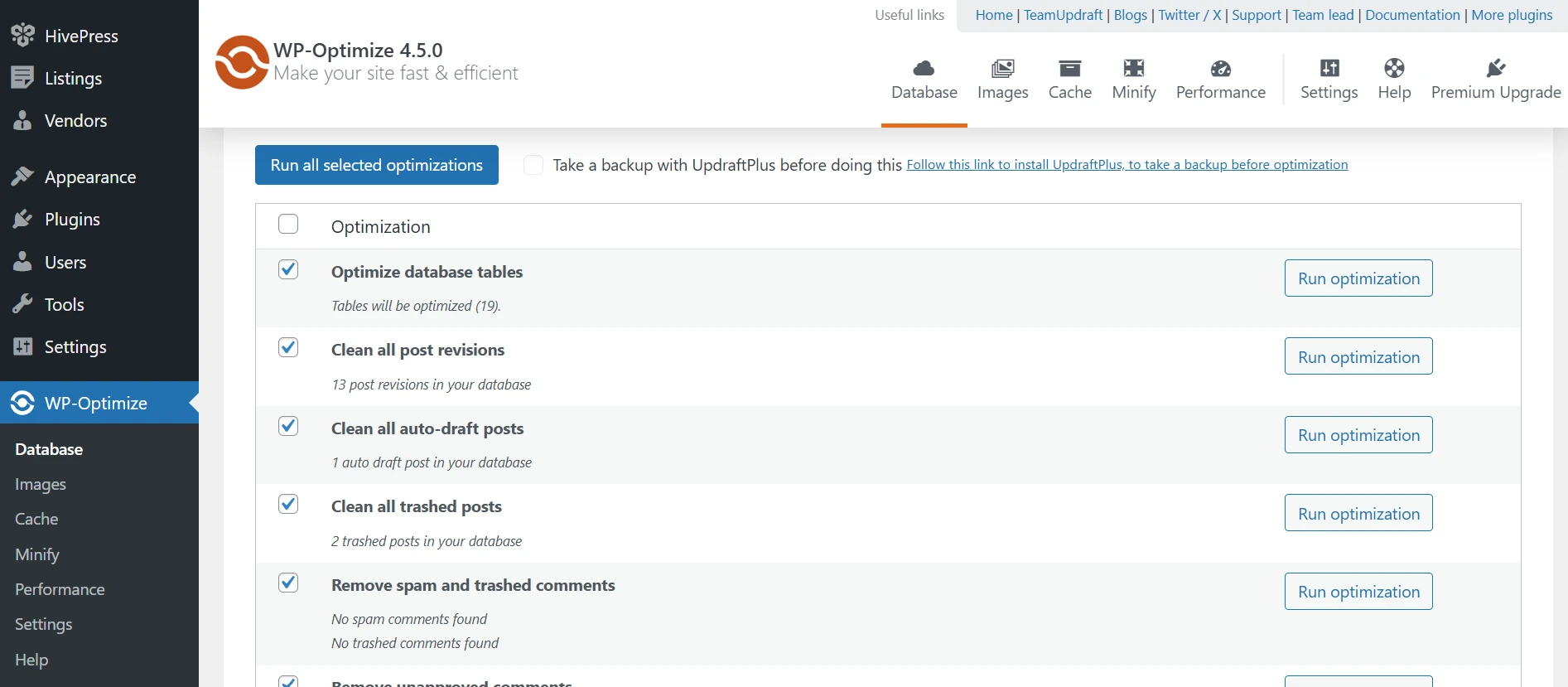
Manual cleanup: Open phpMyAdmin through your hosting control panel, select your WordPress database, check all tables, and run “Optimize table” from the dropdown.
To prevent excessive revision accumulation going forward, add this line to your wp-config.php file before the “That’s all, stop editing!” comment:
define('WP_POST_REVISIONS', 5);
This caps revisions at five per post instead of WordPress’s unlimited default.
Impact: On sites older than two years, database optimization commonly reduces database size by 50–70% and produces noticeably faster query response times and admin dashboard load speeds.
Enable Lazy Loading for Images and Videos
There is no reason to load images the visitor may never see. Without lazy loading, every image on a long page, including those well below the fold loads on arrival, regardless of whether the visitor will ever scroll to them. On image-heavy pages and mobile connections, this is a significant and entirely avoidable performance cost.
Lazy loading defers below-the-fold images and videos, loading them only as the user scrolls toward them.
How to implement: WordPress has included native lazy loading since version 5.5, applied automatically to images via the loading="lazy" attribute. To ensure it’s functioning correctly:
- Confirm you are running WordPress 5.5 or higher
- Verify your theme outputs proper width and height attributes on image elements, without these, the browser cannot reserve space and lazy loading behaves unpredictably
- For embedded YouTube videos, use WP YouTube Lyte or Lazy Load by WP Rocket to replace iframes with a static thumbnail until the user clicks to play
Impact: On image-heavy pages, lazy loading can reduce initial page weight by 50% or more, with a direct improvement in Time to Interactive, one of Google’s Core Web Vitals signals.
Disable Pingbacks and Trackbacks
Pingbacks and trackbacks automatically notify other WordPress sites when you link to them. In theory, a cross-site communication mechanism. In practice, a spam vector that consumes server resources, creates minor security vulnerabilities, and fills your comment section with automated notifications nobody reads.
How to disable:
- Go to Settings → Discussion
- Uncheck “Allow link notifications from other blogs (pingbacks and trackbacks) on new posts”
- Click Save Changes
- For existing posts, use the Disable Comments plugin to bulk-disable across all historical content
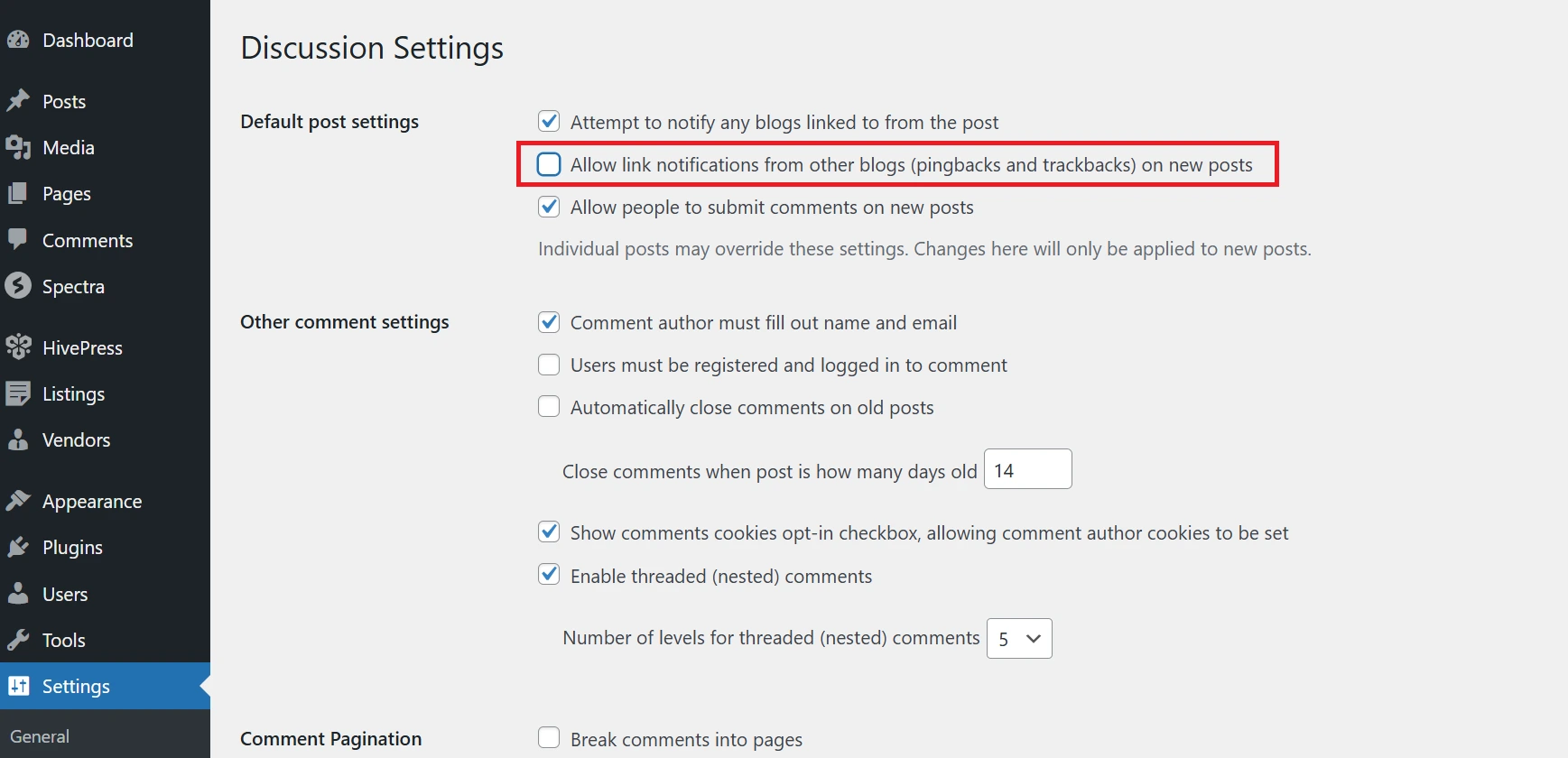
Impact: Reduced spam, lower server load, and a cleaner, more secure installation. This takes 60 seconds.
Fix Your Permalink Structure
WordPress installs with “Plain” permalinks by default, producing URLs like yoursite.com/?p=123 unreadable, unshareable, and invisible to search engines.
The correct structure for a business site is Post name, producing clean URLs like yoursite.com/services/web-design. These URLs perform better in search results, earn higher click-through rates, and project credibility to visitors who see them in browser bars and search listings.
How to change:
- Go to Settings → Permalinks
- Select Post name
- Click Save Changes
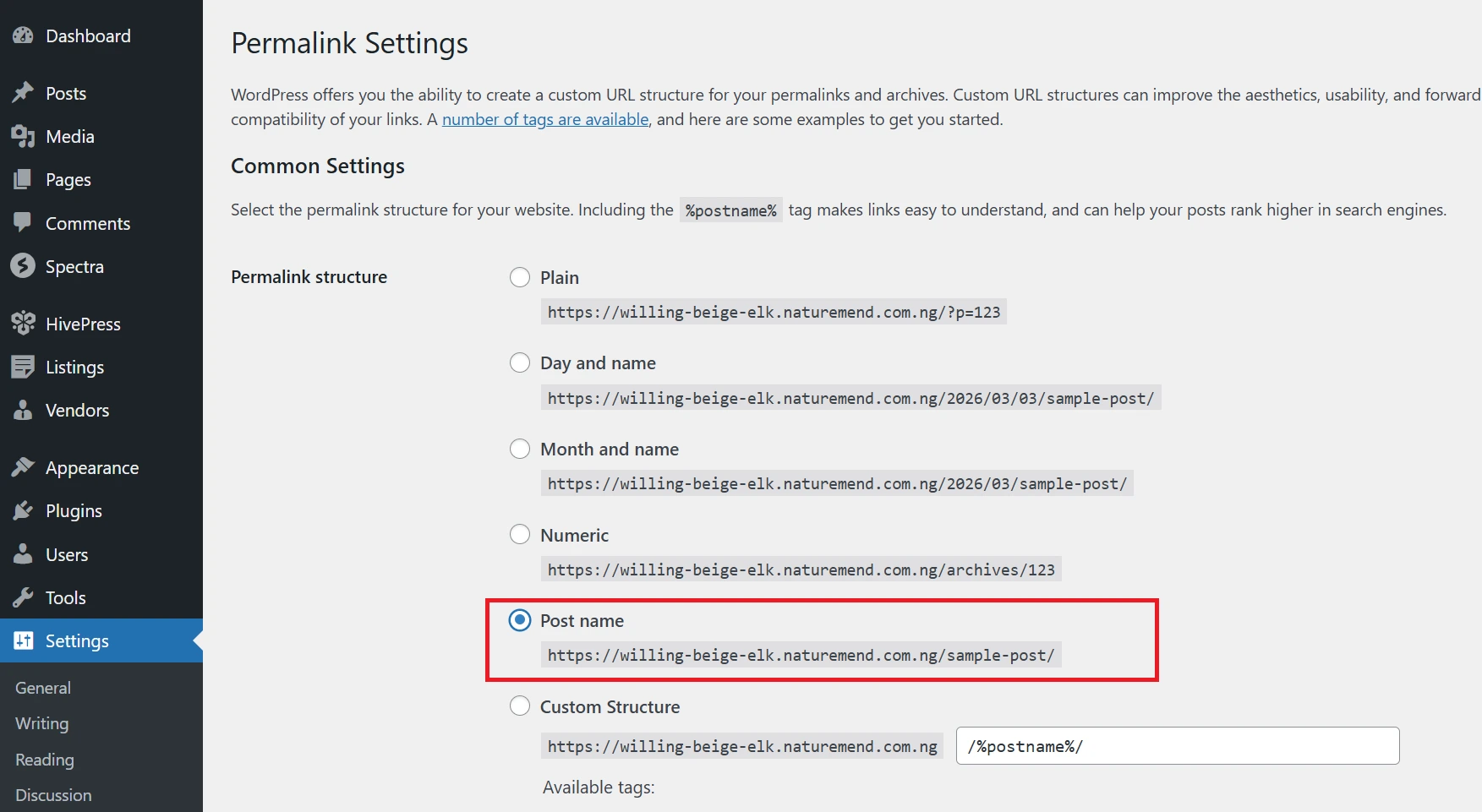
Critical: Make this change early in your site’s life. Changing permalink structure on an established site breaks every existing URL across your domain. If your site has indexed pages, implement 301 redirects before making this switch, or risk losing the search equity those pages have accumulated. If you are unsure how to handle this correctly, get professional help before touching this setting on a live site.
Impact: Improved SEO, higher click-through rates from search results, and a more professional appearance, with zero ongoing cost once configured correctly.
What Not to Touch
Three settings that look like optimization opportunities but consistently cause more problems than they solve:
WordPress Address and Site Address URLs. Incorrect values here lock you out of your own admin dashboard. Do not change these unless you are intentionally migrating to a new domain or directory.
The REST API. Disabling it silently breaks dozens of plugins and core features that depend on it. Unless you have completed a full dependency audit, leave it enabled.
PHP Memory Limits. Setting this too low to conserve server resources creates problems during plugin installations and updates. Keep it at 256MB or above.
Implementing These Changes Safely
Regardless of how straightforward any individual change is, follow these rules before starting:
Back up first, completely. You need both a database backup and a file backup, stored off your server. A backup that exists only on your host is not a reliable backup.
Change one setting at a time. Implement, test, confirm, then move on. If something breaks, you will know exactly what caused it.
Use a staging environment if available. Most managed WordPress hosts offer one. Test there before applying changes to production.
Document everything you change. A simple running log, what changed, when, and why, saves significant time if issues emerge later.
Test on mobile and desktop after each change. Render issues often appear on one device type before the other.
How to Measure the Improvement
Run a baseline test before making any changes. Then retest after implementing changes in batches. Use these tools:
- Google PageSpeed Insights (pagespeed.web.dev) — measures Core Web Vitals and provides specific, actionable recommendations tied directly to Google’s ranking signals
- GTmetrix (gtmetrix.com) detailed waterfall analysis and historical performance tracking
- WebPageTest (webpagetest.org) tests from specific geographic locations, essential for businesses with international audiences
Track these specific metrics before and after:
| Metric | Target |
| Largest Contentful Paint (LCP) | Under 2.5 seconds |
| Total Blocking Time (TBT) | Under 200ms |
| Cumulative Layout Shift (CLS) | Under 0.1 |
| Total Page Size | Under 1MB |
| HTTP Requests | Under 50 |
Sites that implement all 10 changes typically see 20–40% load time improvements. Sites starting from a particularly unoptimized baseline frequently exceed that range significantly.
Conclusion
WordPress’s defaults are built for accessibility. The gap between a stock installation and a properly optimized site is significant and it is not closed by upgrading your hosting plan or rebuilding from scratch. It is closed by deliberate configuration: caching, compression, image handling, database hygiene, and correct server settings working in combination.
Every change in this post is reversible. None requires rebuilding your site. All of them directly affect your search rankings, your conversion rates, and the experience of every visitor who arrives, because a visitor who bounces after three seconds is a lead your business will not recover.
A slow site is not a technical inconvenience. It is a revenue problem. Treat it with the same urgency.
If you’ve worked through this list and want a complete picture of what’s holding your site back, Maxify Global offers WordPress development, maintenance and performance audits. We review your full configuration, benchmark your current performance against measurable standards, identify the specific bottlenecks affecting your site, and implement every fix correctly, so nothing breaks in the process.
Contact us at support@maxifyglobal.com or visit www.maxifyglobal.com to get started.
