
 Raymond Yima
Table of Contents
Microsoft Copilot mistakes aren’t about the technology, they’re about habits. Two people on the same sales team roll out Copilot the same week. One gives up after a month, convinced it’s overhyped: every proposal it drafts sounds like it was written for a different company. The other builds it into her daily routine so thoroughly that colleagues start asking what her secret is. There isn’t one. She just learned to work with the tool instead of against it.
That split happens in nearly every organization that adopts Copilot. The technology is identical for both people. What differs is a set of habits, some obvious, some not, that determine whether Copilot feels like a genuine productivity gain or an overpromised disappointment.
This isn’t a list of things Copilot can’t do. It’s a list of things professionals unintentionally do to themselves that limit what a genuinely capable tool can deliver.
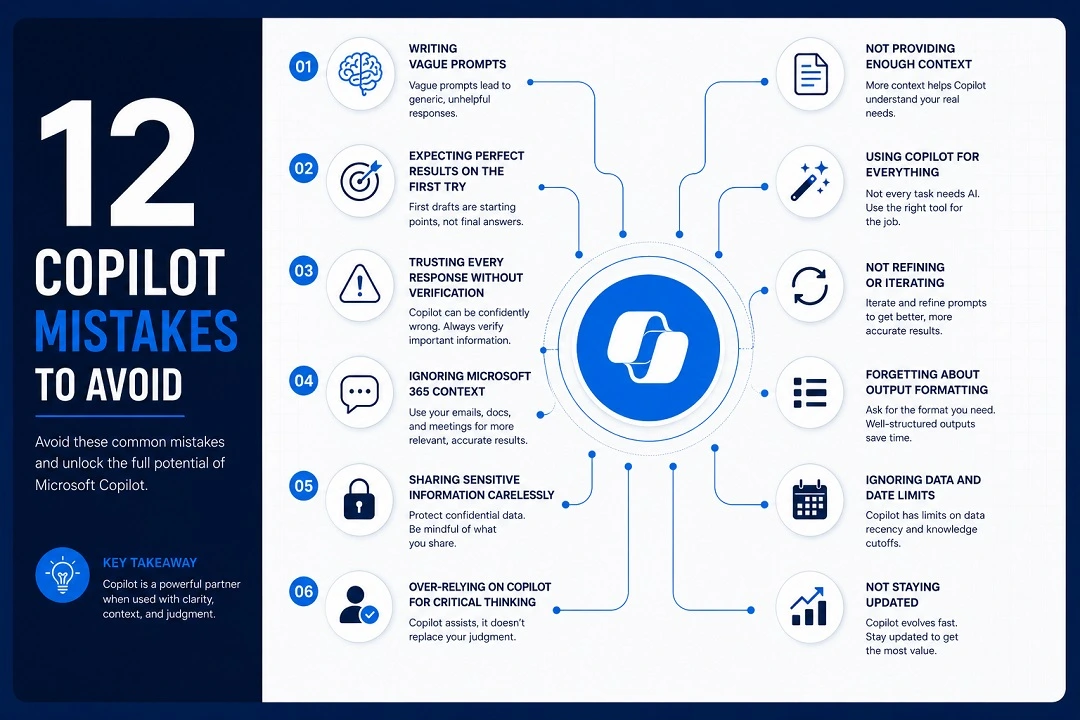
Why So Many Professionals Struggle with Microsoft Copilot
Most of the friction comes down to three things.
First, expectations run ahead of the technology. Copilot is built on large language models, and Microsoft is direct about what that means in practice: responses can occasionally be incorrect, and the same prompt can produce slightly different results each time you run it. Anyone expecting a flawless, deterministic answer every time is going to be disappointed regardless of how well they prompt.
Second, people treat Copilot like a digital employee rather than a collaborator. When someone expects Copilot to independently own an outcome (a finished proposal, a completed analysis, a resolved customer issue), they’re asking it to do something it isn’t built for. It doesn’t have accountability, context outside what you give it, or the judgment to know when something matters more than it looks. The tasks that go badly are usually the ones where someone hands over a decision, not just a draft.
Third, and this is the fixable one, most professionals have never been taught how to prompt. Nobody handed out a manual. People type the way they’d search Google, get a mediocre result, and assume that’s the ceiling. It isn’t.
Understanding Copilot’s actual strengths (drafting, summarizing, reformatting, brainstorming, working across your files and mail) and its actual limits (judgment, verification, anything requiring real-world context it doesn’t have) is most of the battle. The rest is habit.
12 Biggest Mistakes Professionals Make When Using Microsoft Copilot
1. Writing Vague Prompts
This is the single biggest driver of disappointing results. A one-line request like “write a proposal” or “summarize this” hands Copilot almost no direction, so it defaults to the most generic, average version of what you asked for.
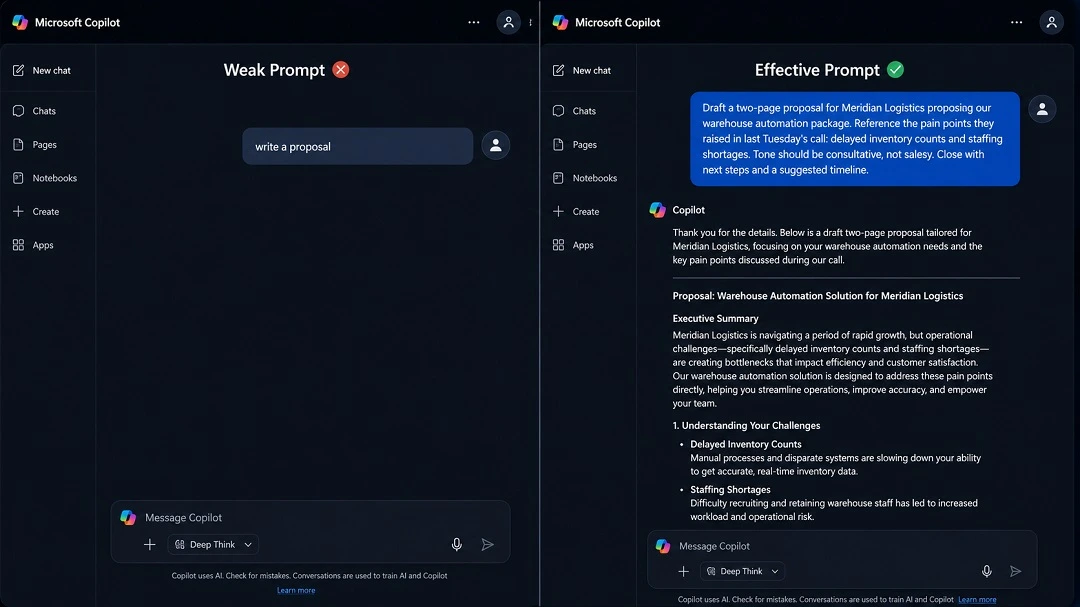
- Weak prompt: “Write a proposal for the client.”
- Improved prompt: “Draft a two-page proposal for Meridian Logistics proposing our warehouse automation package. Reference the pain points they raised in last Tuesday’s call: delayed inventory counts and staffing shortages. Tone should be consultative, not salesy. Close with next steps and a suggested timeline.”
The second version works because it removes the guesswork. Copilot isn’t inventing a scenario; it’s filling in details you’ve already supplied, which is a fundamentally easier and more accurate task than generating content from nothing.
2. Expecting Perfect Results on the First Try
A first Copilot draft is a starting point, not a finished product, and treating it as anything else sets up unnecessary frustration. That’s not a flaw; it’s the correct way to use a generative tool. The professionals who get consistently strong results don’t expect a flawless first pass; they expect a solid 70 to 80 percent draft and use follow-up prompts to close the remaining gap.
If your reaction to an imperfect first draft is to abandon the tool rather than refine the request, you’re stopping one step before the payoff.
3. Trusting Every Response Without Verification
Copilot writes in confident, polished prose regardless of whether the underlying content is accurate, which makes its mistakes harder to spot than a typo-riddled human draft would be. Microsoft explicitly warns that responses can include incorrect content and recommends cross-referencing outputs with trusted sources when it matters.
Reports with statistics, business proposals with claims about capabilities or pricing, policy summaries, and anything citing a regulation all deserve a second look before they leave your inbox. This isn’t paranoia; it’s the same due diligence you’d apply to a draft from a new hire who hasn’t yet earned your full trust. A confidently wrong number in a client-facing proposal or board deck is far more costly to fix after the fact than it would have been to catch in a thirty-second review.
4. Ignoring Microsoft 365 Context
The biggest advantage Copilot has over a standalone AI Chabot is that it can ground its answers in your actual work (your emails, your meetings, your documents) through Microsoft Graph. Plenty of professionals never use this, treating Copilot Chat as a generic Q&A box disconnected from anything happening in their calendar or inbox.
Instead of “draft talking points for my meeting,” try “draft talking points for my 2pm with the Meridian account team, based on the notes in the shared OneNote and the email thread from Priya last week.” The difference in relevance is substantial; it’s the difference between a draft you can use and one you have to rewrite from scratch.
5. Sharing Sensitive Information Carelessly
Microsoft 365 Copilot and Copilot Chat, used through a properly licensed work account, keep prompts and referenced data inside your organization’s Microsoft 365 boundary and don’t use them to train Microsoft’s foundation models. That’s a real and meaningful protection, but it isn’t a blanket permission to paste anything into a prompt without thinking.
A few things worth knowing:
- Confidential client data, unreleased financials, and personal employee information still deserve caution, even with enterprise protections in place. Confirm with your IT or compliance team what’s actually approved for your organization’s specific setup before treating it as a given.
- Microsoft Purview sensitivity labels and data loss prevention policies can restrict what Copilot is allowed to process; organizations that haven’t configured these are leaving a gap.
- Copilot doesn’t grant new access. It only surfaces content within the same Microsoft 365 permissions a user already has. That’s good news for individual users, but it means the underlying permission structure, who can see what across SharePoint and Teams, matters more than it used to.
- Follow your company’s specific AI usage policy. If one doesn’t exist yet, that’s worth flagging to IT or leadership rather than guessing.
6. Using Copilot for Tasks That Require Human Judgment
There’s a category of work where an AI-generated draft, however polished, is the wrong tool entirely:
- Performance reviews: Copilot can help structure language, but the substance has to reflect a manager’s actual assessment, not a generated approximation of one.
- Legal decisions: contract language, compliance interpretations, and anything with legal exposure need a qualified professional’s review, not an AI draft treated as final.
- HR issues: hiring calls, terminations, disciplinary actions, and sensitive employee situations carry consequences that require human judgment and accountability, often alongside legal consultation.
- Sensitive communications: a layoff announcement, a client apology after a serious failure, a crisis response. These need a human voice behind them, not a smoothed-over AI draft.
- Strategic decision-making: Copilot can summarize options and surface information, but the actual call on which direction the business takes is yours to make.
7. Publishing AI-Generated Content Without Editing
Unedited Copilot output has a recognizable texture: competent, a little flat, occasionally slightly off in tone for the specific relationship or context. Sending it straight out, to a client, to leadership, to a public channel, without a pass for accuracy, brand voice, and formatting is one of the fastest ways for a team to become associated with obviously AI-written communication.
A quick review isn’t extra work tacked onto the process. It’s the part of the process that turns a draft into something you’re willing to put your name behind.
8. Not Using Follow-Up Prompts
Many users treat Copilot like a vending machine: one prompt in, one result out, and if it’s not right, they give up or start over from scratch. That’s not how the tool is designed to work. Copilot is conversational, and follow-up prompts refine the output far more efficiently than rewriting the whole request.
Useful follow-ups include:
- “This is too long, cut it by half without losing the key points.”
- “Adjust the tone to be more formal, this is going to senior leadership.”
- “Expand the third section with a specific example.”
- “Simplify this so someone outside the department can follow it.”
- “Give me two alternative versions of the opening paragraph.”
Each of these takes seconds to type and routinely gets you to a usable result faster than manually rewriting the draft yourself.
9. Limiting Copilot to One Application
Many professionals adopt Copilot in a single app, often Outlook or Word, and never explore the rest. That leaves real value on the table, since each Microsoft 365 app has a different strength:
- Outlook: drafting replies, summarizing long threads, triaging a backed-up inbox.
- Word: drafting from scratch, rewriting a specific paragraph, restructuring a long document.
- Excel: explaining formulas, summarizing trends, generating a first-pass analysis or chart from raw data.
- Teams: meeting recaps, catching up on missed discussions, pulling out decisions and action items.
- PowerPoint: turning notes or a Word doc into a structured slide outline.
- OneNote: organizing scattered notes into something coherent and searchable.
Someone who only uses Copilot in one app is getting a fraction of the value of someone who’s built it into their whole workflow.
10. Overlooking Security and Permissions
There’s a common misconception that Copilot has some kind of independent, expanded access to company data. It doesn’t. Microsoft is explicit that Copilot only surfaces organizational content to users who already have at least view permission, using the exact same access controls already in place across SharePoint, OneDrive, and Teams.
The catch is what this reveals rather than causes. Organizations with years of loosely managed sharing links, sites left open to “everyone,” or permissions nobody’s audited in a while will find that Copilot makes that existing overexposure much easier to stumble into, not because Copilot introduced a new risk, but because it makes buried content searchable in a way manual browsing never did. That’s a reason for IT and security teams to clean up permissions before or during rollout, not a reason for individual users to distrust the tool, but a reason to be thoughtful about what you reference in a prompt.
11. Never Learning Prompt Writing
Prompting isn’t intuition, it’s a skill, and a fairly learnable one. Microsoft’s own guidance breaks a good prompt into four parts: goal, context, expectations, and source, meaning what you want, why you want it, how it should look, and what it should draw from. You don’t need all four every time, but the more specific ones you include, the less editing you’ll do afterward.
Two elements worth adding on top of Microsoft’s framework:
- Role: tell Copilot what perspective to write from (“as a project manager,” “as a technical writer”).
- Audience: who’s going to read or use this, since that shapes tone and depth as much as anything else in the prompt.
Before: “Write an email about the delay.”
After: “As a project manager, write an email to our client’s operations director explaining a two-week delay in the Meridian rollout caused by a vendor hardware shortage. Keep it factual and reassuring, include a revised delivery date, and keep it under 150 words.”
The second prompt takes maybe twenty extra seconds to type. It routinely saves several minutes of rewriting on the other end, and produces something closer to what you’d have written yourself, just faster.
12. Measuring Success Incorrectly
A subtler mistake, but a common one: judging Copilot by asking “did AI do my work for me?” That’s the wrong bar, and it guarantees disappointment, because that was never really what the tool is for.
The more useful question is “did Copilot help me produce better work, faster?” That reframing changes what counts as success. A draft that took five minutes to generate and three minutes to polish, instead of thirty minutes to write from scratch, is a clear win, even though a human still did meaningful work on it. Measured against the right bar, most professionals find Copilot earns its place in the workflow quickly.
How Successful Professionals Use Microsoft Copilot
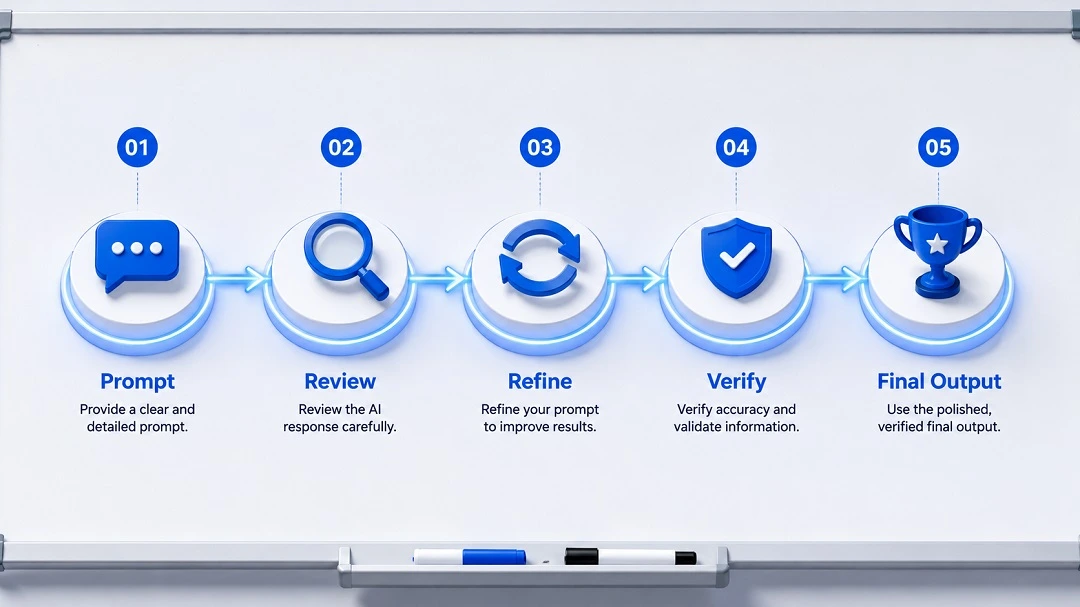
A handful of habits separate people who get real value from Copilot from people who write it off after a few disappointing attempts:
- Start with clear objectives. Know what “done” looks like before you prompt.
- Give context. Reference the actual meeting, document, or email whenever possible instead of describing it from memory.
- Review outputs, every time. No exceptions, especially for anything client-facing or fact-heavy.
- Iterate with follow-ups. Treat the first response as round one, not the final answer.
- Verify facts. Especially anything with numbers, dates, or claims that will be seen by a client or leadership.
- Use Copilot consistently, across apps. Like any tool, it gets more useful the more familiar you are with its patterns and quirks.
- Combine AI with professional expertise. Copilot accelerates the parts of your job that involve producing content. It doesn’t replace the judgment, relationships, and accountability that define the rest of it.
Common Myths About Microsoft Copilot
“It replaces jobs.” Copilot changes how certain tasks get done, largely the repetitive, drafting-heavy parts of a role, but it doesn’t replace the judgment, relationship management, and decision-making that most professional roles actually depend on.
“It always knows the correct answer.” It doesn’t. It’s a language model generating plausible, well-formatted text based on patterns, not a verified database. Confidence in tone isn’t the same as accuracy in content.
“Better prompts don’t matter.” They matter enormously, often the single biggest factor separating a usable draft from a generic one, arguably more important than which app you’re using Copilot in.
“AI removes the need for expertise.” If anything, expertise becomes more important, since it’s what lets you spot when an AI-generated draft is subtly wrong, poorly reasoned, or off-tone.
“Copilot can access everything automatically.” It only accesses what the signed-in user already has permission to view, nothing more, and nothing new.
Frequently Asked Questions
Can Microsoft Copilot make mistakes? Yes. It’s built on large language models, and Microsoft itself notes that responses can occasionally be incorrect or inconsistent between attempts at the same prompt. Always review output before relying on it, especially for facts, figures, or anything client-facing.
Why are my Copilot responses poor? Almost always, it’s the prompt. Vague, single-sentence requests produce generic, single-sentence-quality output. Adding context, a defined audience, and a clear expected format usually fixes it immediately, with no need to change tools or lower expectations.
How do I improve Microsoft Copilot prompts? Follow the goal, context, expectations, source structure, and consider adding a defined role and audience on top. Say what you want, why you want it, who it’s for, how it should be formatted, and what source material it should use. Then iterate with follow-up prompts rather than starting over each time.
Is Microsoft Copilot always accurate? No. Treat its output the way you’d treat a fast first pass from a capable but occasionally wrong junior colleague: useful, often close to right, but worth checking before it goes out under your name.
What information should I never share with Copilot? Client data, confidential financials, personal employee information, and anything covered by a nondisclosure agreement shouldn’t go into any AI tool without explicit confirmation from your organization that the specific implementation is approved for that data.
Does Microsoft Copilot learn from my prompts? No. When accessed through a properly licensed Microsoft 365 Copilot or Copilot Chat account signed in with a work account, prompts and responses stay inside your organization’s Microsoft 365 boundary and aren’t used to train Microsoft’s underlying foundation models.
How can organizations improve Copilot adoption? Training on prompting fundamentals tends to matter as much as the license itself. It’s also worth auditing SharePoint and Teams permissions before a wide rollout, and configuring Purview sensitivity labels where relevant, since Copilot will surface whatever a user already has access to, including content nobody meant to leave exposed.
Is Microsoft Copilot secure? It operates within your organization’s existing Microsoft 365 security, compliance, and permission model rather than introducing a separate one. That’s a strength, but it also means Copilot will faithfully surface anything a user already has access to, so the real security work for most organizations is making sure the permissions underneath it are configured correctly in the first place.
Better Habits Lead to Better Microsoft Copilot Results
Copilot isn’t a replacement for professional judgment, and it was never meant to be. It delivers the most value to professionals who treat it as a collaborative assistant rather than a magic answer machine: give it clear context, review what it produces, ask follow-up questions when the first draft isn’t quite right, and keep the judgment calls that matter for yourself. None of the fixes above require technical skill or a new license; they’re habits. Build them once, and the gap between “Copilot isn’t that useful” and “I don’t know how I worked without it” tends to close within the first few weeks.
