 Raymond Yima
You’re Probably Already Paying for This
If your business runs on Microsoft 365, using Outlook, Teams, SharePoint, OneDrive, or Excel as daily operational tools, there is a meaningful chance you’re already paying for a capable automation platform and not using it. Power Automate is included in most Microsoft 365 business subscriptions at no additional cost.
That single fact reframes the Zapier-versus-Power Automate question for a large segment of businesses. It’s no longer just a feature comparison. It’s a question of whether you deploy a tool you already own, or pay a separate monthly subscription for a competitor whose greatest advantage, native app connectivity, matters far less once your primary tools are already inside the Microsoft ecosystem.
This post is for businesses running Microsoft 365 who have heard of Power Automate but haven’t used it seriously, and for IT managers and operations leads evaluating automation platforms for a Microsoft-first environment. It covers what Power Automate actually is, where it outperforms third-party tools like Zapier, where its limitations show, and how to decide whether it belongs in your automation stack.
What Power Automate Actually Is
Power Automate is Microsoft’s automation platform, designed to create automated workflows, called flows, between Microsoft applications and hundreds of third-party services. It connects apps, triggers actions based on events, moves data between systems, and handles repetitive tasks without human intervention.
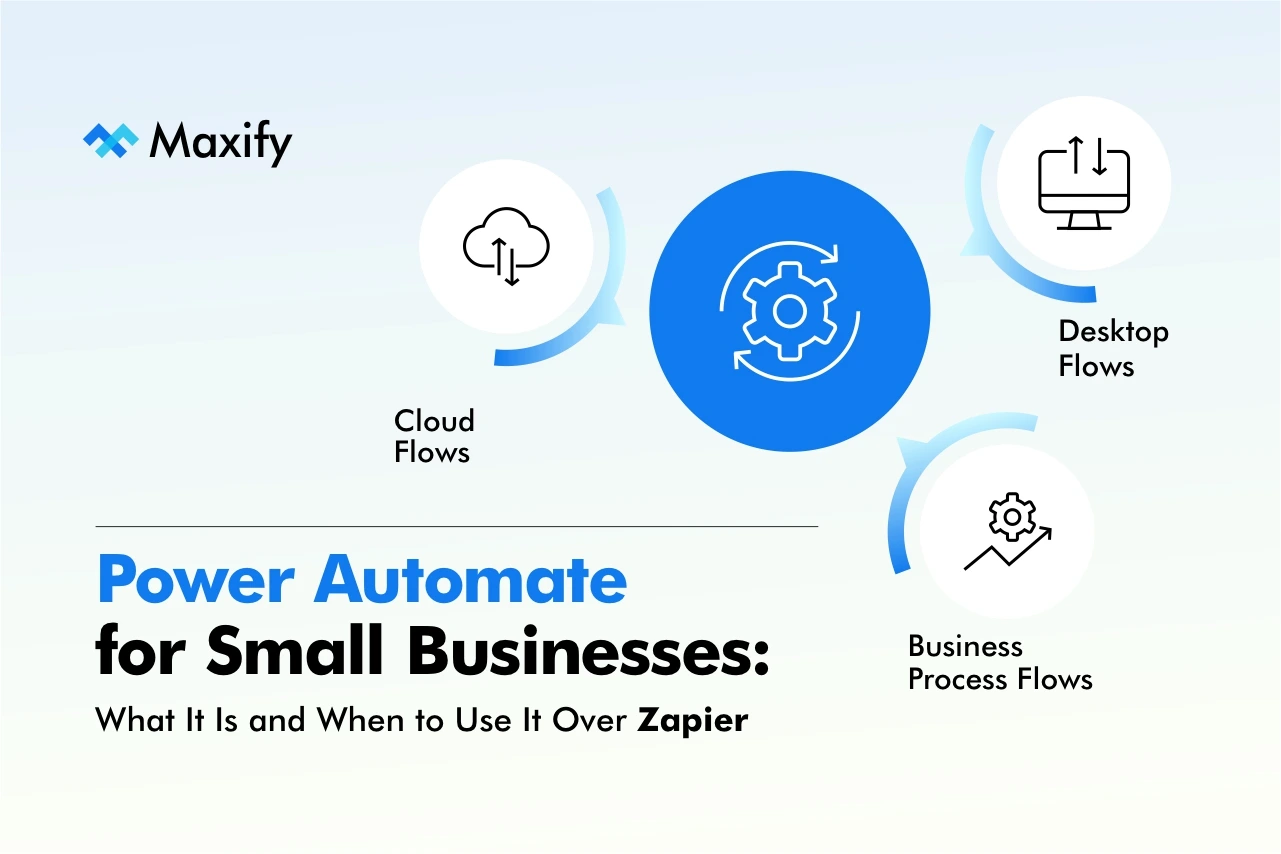
It operates across three workflow types, each serving a different automation category:
Cloud Flows automate tasks between web-based apps and services, the equivalent of what Zapier Zaps do. A cloud flow might trigger when a new email arrives in Outlook, a SharePoint list item is updated, or a Microsoft Form is submitted.
Desktop Flows automate tasks on a Windows computer itself, clicking buttons, entering data, navigating legacy software, using robotic process automation (RPA). This category has no direct Zapier equivalent and is covered in depth in our upcoming post.
Business Process Flows guide users through multi-step structured processes, approvals, onboarding sequences, compliance checklists, embedded directly in Microsoft applications like Dynamics 365.
For small businesses, Cloud Flows represent the starting point and the most immediately applicable category.
Where Power Automate Has a Genuine Advantage
Native Microsoft 365 Integration Depth
This is the defining advantage, and it’s not close. Power Automate’s connection to Outlook, Teams, SharePoint, OneDrive, Excel, OneNote, Planner, and the rest of the Microsoft 365 suite is not a third-party API integration, it’s a first-party, deeply embedded connection built by the same company that makes the tools.
What this means in practice: Power Automate can trigger on events that third-party platforms can’t access. It can detect when a specific SharePoint list column changes, when an Outlook email is flagged rather than just received, when a Teams channel message contains a specific keyword, or when a file in a specific OneDrive folder is modified. These granular trigger conditions are available because Microsoft controls both the automation platform and the source application simultaneously.
Zapier connects to Microsoft 365 apps, but through standard API integrations that offer a fraction of the trigger and action options available natively inside Power Automate.
Included Pricing for Microsoft 365 Subscribers
Power Automate is included with the following Microsoft 365 business plans:
- Business Basic
- Business Standard
- Business Premium
- Microsoft 365 Apps for Business, and enterprise E1, E3, and E5 licenses.
Coverage includes a meaningful allowance of cloud flow runs per user per month.
For small businesses already subscribing to any of these plans, Power Automate’s core functionality costs nothing beyond what’s already being paid. This changes the cost calculus entirely, particularly for businesses currently paying Zapier $20–50 per month for workflows that live entirely within the Microsoft ecosystem.
Enterprise-Grade Security and Compliance
Power Automate operates within Microsoft’s security and compliance framework, the same one governing Outlook, SharePoint, and Teams. For businesses in regulated industries, those handling sensitive client data, or those that have undergone IT security reviews that produced approved vendor lists, Power Automate is already inside the perimeter. It doesn’t require a new vendor assessment, a new data processing agreement, or a separate security review.
For Zapier to be deployed in these environments, it has to pass through that process independently, a non-trivial overhead in enterprise and professional services contexts.
Approval Workflows Across Microsoft Applications
Power Automate has a native Approvals connector that is deeply integrated with Teams and Outlook. Multi-level approval workflows, where a document, purchase request, or leave application routes through a sequential or parallel approval chain, notifying each approver in Teams, logging outcomes in SharePoint, and sending confirmation emails in Outlook are built directly into the platform.
Building equivalent approval workflows in Zapier requires significantly more workaround and external tooling. In Power Automate, it’s a core feature with a purpose-built connector.
Where Power Automate Falls Short
Non-Microsoft App Coverage
Power Automate supports approximately 900+ connectors. Zapier supports 6,000+. If your business uses a niche CRM, an industry-specific vertical application, a regional payment processor, or any tool outside the mainstream SaaS ecosystem, Zapier is significantly more likely to have a native connector.
Beyond connector count, the quality of non-Microsoft connectors in Power Automate varies. First-party Microsoft connectors are excellent. Many third-party connectors, particularly for smaller applications, are community-built, less maintained, and offer fewer trigger and action options than their Zapier equivalents.
Learning Curve
Power Automate’s interface is more complex than Zapier’s by a meaningful margin. The concept of actions, conditions, apply to each loops, and expressions is more demanding than Zapier’s guided form-based workflow. For non-technical business users building their first automation without support, Zapier reaches a working result faster.
Power Automate rewards investment in learning. It does not reward impatience.
Expression Language
For conditional logic and data transformation beyond basic field mapping, Power Automate uses its own expression language, similar in structure to Excel formulas. Functions like formatDateTime(), substring(), if(), and concat() are used to handle data manipulation within flows. These are powerful but require familiarity. Business users without Excel or formula experience find this a significant barrier. Zapier’s equivalent functionality (the Formatter tool) is more accessible, though less capable.
The Decision Framework: Power Automate or Zapier?
Use Power Automate when:
- Your business runs primarily within Microsoft 365: Outlook, Teams, SharePoint, OneDrive are your daily operational tools
- You need deep trigger conditions on Microsoft apps that third-party platforms can’t access
- Security and compliance requirements restrict external vendor connections
- Your Microsoft 365 subscription already includes it, eliminating the cost argument for Zapier
Use Zapier when:
- Your automation needs span tools outside the Microsoft ecosystem
- The person building workflows has no technical background and needs maximum guided simplicity
- Your critical apps don’t have quality Power Automate connectors
- You need the breadth of Zapier’s 6,000+ integration library for an eclectic tool stack
Use both when:
- Microsoft 365 workflows run through Power Automate, non-Microsoft workflows run through Zapier
- This split architecture, Power Automate for internal, Zapier for external connections is how mature automation operations in Microsoft environments typically settle
Three Power Automate Flows Worth Building First
If you’re in a Microsoft 365 environment and haven’t explored Power Automate yet, these are the highest-ROI starting points:
1. Outlook Email to SharePoint + Teams Notification: When an email arrives matching specific criteria (from a key client, with a specific subject keyword, flagged as important), automatically save the email to a designated SharePoint library and post a notification to the relevant Teams channel. Replaces manual email filing and ensures critical communications are visible to the right team immediately.
2. Microsoft Forms Submission to SharePoint List + Approval Chain: When a form is submitted, an expense claim, a leave request, a procurement request, automatically create a SharePoint list entry and trigger a Teams-based approval workflow routed to the appropriate manager. The approval outcome updates the SharePoint record and emails the submitter. This replaces paper forms and email approval chains that have no audit trail.
3. SharePoint List Change to Teams Alert: When a specific column in a SharePoint list is updated, a project status changes to “Blocked,” a client record is updated, an inventory item drops below threshold, send an automatically formatted alert to the relevant Teams channel or individual. Replaces manual status checks and ensures teams respond to changes in near-real time.
The Bottom Line
Power Automate is not a Zapier replacement for every business. For companies running multi-platform tool stacks with limited Microsoft exposure, Zapier remains the more practical choice. But for the substantial portion of small and mid-sized businesses whose operational backbone is Microsoft 365, whose teams live in Outlook and Teams, whose files live in SharePoint and OneDrive, Power Automate is the automation platform that fits most naturally, integrates most deeply, and for most subscribers, costs nothing extra to use.
The businesses currently paying for Zapier to automate Microsoft 365 workflows are, in many cases, paying for a workaround to a tool they already own. The rational response to that discovery is not to immediately cancel Zapier, it’s to evaluate which workflows belong in Power Automate, move them there, and reduce or eliminate the Zapier dependency for those use cases.
Automation infrastructure should be built on the platform that fits your environment best. For Microsoft 365 businesses, Power Automate deserves a serious evaluation before a third-party subscription is renewed.
Want to know which of your current workflows belong in Power Automate and how to build them correctly?
Maxify Global implements Microsoft Power Automate solutions for businesses running Microsoft 365 environments. We audit your existing workflows, identify what can be moved into Power Automate without additional cost, and build flows that integrate deeply with your Teams, SharePoint, Outlook, and OneDrive infrastructure.
Contact us at support@maxifyglobal.com or visit www.maxifyglobal.com to get started.
