 Raymond Yima
Table of Contents
Most people try Copilot once, ask it something vague, get a mediocre answer, and quietly go back to doing things the old way. That’s a shame, because Microsoft Copilot productivity gains are real, they just don’t show up the way people expect. They show up in the ten minutes you didn’t spend re-reading a 40-message email thread, the pivot table you didn’t have to look up a formula for, and the first draft of a deck that would have otherwise eaten your Sunday night.
Microsoft’s own research backs this up, though the numbers are more modest than the marketing sometimes suggests. A large field study by Microsoft Research tracked more than 6,000 workers at 56 firms and found that regular Copilot users cut their weekly email-reading time by about 18%, and completed documents nearly a full day faster than similar workers without it, while workers with access to Copilot overall saved a more modest 12 minutes a week on email. The 2026 Work Trend Index adds an important nuance: nearly half of all Microsoft 365 Copilot chat activity now supports higher-order cognitive work, analysis, problem-solving, and decision-making rather than simple drafting or lookup tasks.
This article walks through ten specific ways professionals, managers, and consultants are using Microsoft 365 Copilot at work right now, with realistic examples, honest caveats, and the licensing details that actually matter when you’re deciding what to buy.
What Actually Makes Microsoft Copilot at Work Different
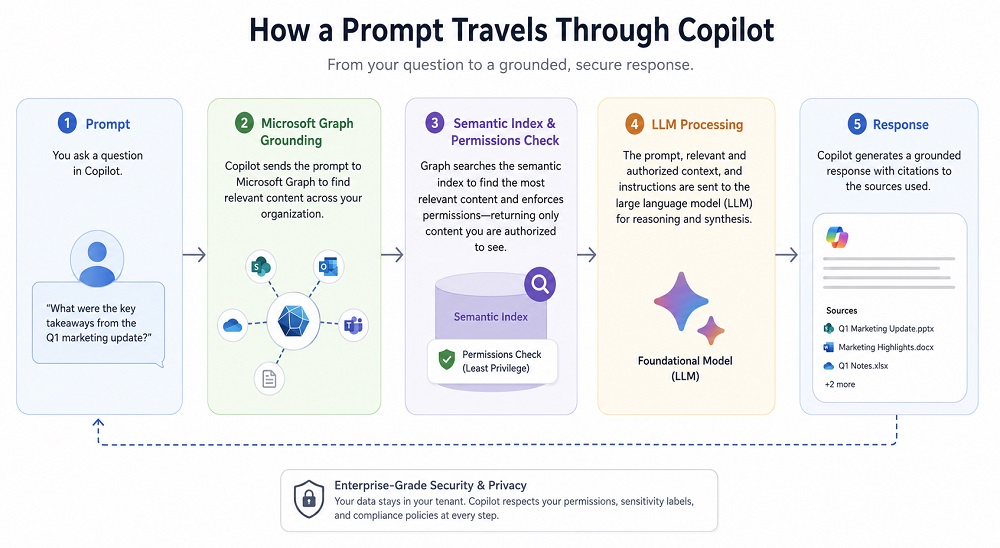
Microsoft 365 Copilot isn’t a chatbot bolted onto Office, it’s a system that combines a large language model with the Microsoft Graph (your emails, chats, and documents) and the Microsoft 365 apps themselves, so it can act on your actual work content instead of generic web knowledge. Two things matter most for professionals evaluating it:
- It only sees what you’re already allowed to see. Copilot inherits your existing SharePoint, OneDrive, and Exchange permissions, it can’t surface a file you couldn’t already open manually.
- There are two very different products wearing the same name. Microsoft 365 Copilot Chat is included at no extra cost with eligible Microsoft 365 plans and is grounded mainly in the web and whatever you paste or upload. The paid Microsoft 365 Copilot add-on is grounded in your actual organizational data through Work IQ and unlocks Copilot inside Word, Excel, PowerPoint, Outlook, and Teams. Mixing these two up is the single most common source of confusion in Copilot rollouts.
With that distinction in mind, here’s where the time savings actually come from.
| S/No. | Where it happens | What Copilot does | Typical time win |
| 1 | Word | Drafts, restructures, and formats documents | Documents completed up to a day faster for regular users |
| 2 | Excel | Builds formulas, models, and charts from plain language | Minutes per analysis, hours per report cycle |
| 3 | PowerPoint | Turns documents and notes into a working deck | Hours per deck, especially recurring reports |
| 4 | Outlook | Summarizes, drafts, and triages email | ~18% less time reading email for weekly users |
| 5 | Teams | Recaps meetings and surfaces action items | Meeting summaries produced in a fraction of manual note time |
| 6 | Copilot Chat / Search | Finds answers across files, chats, and email | Fewer manual searches per day |
| 7 | Researcher & Analyst agents | Runs multi-step research and data analysis | Hours per recurring research task |
| 8 | Copilot Notebooks | Synthesizes many documents into one grounded workspace | Hours per large document review |
| 9 | Custom agents (Copilot Studio / Agent Builder) | Automates a specific repeatable workflow | Ongoing, per process |
| 10 | Copilot Cowork | Executes multi-step tasks across apps with less supervision | Varies — still an emerging capability |
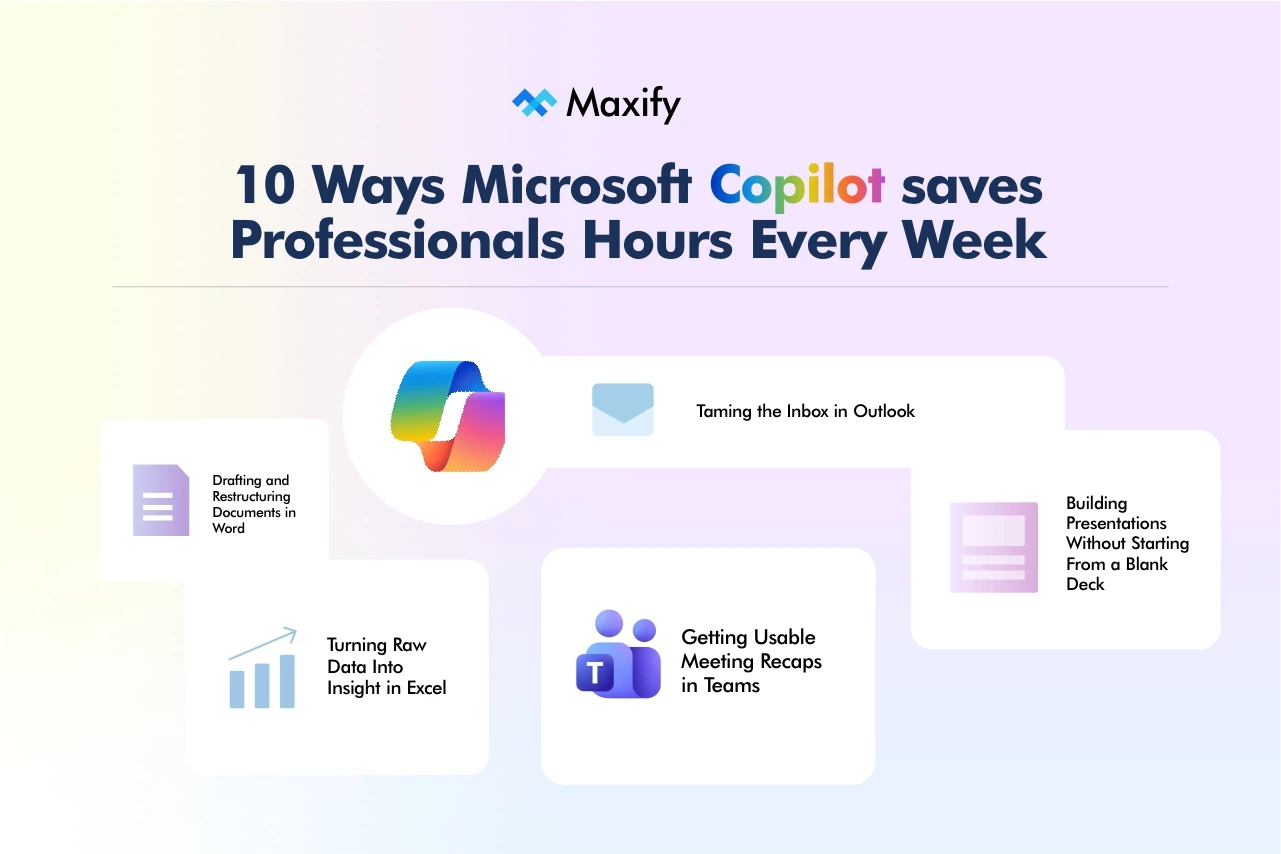
1. Drafting and Restructuring Documents in Word
This is still the highest-volume use case, and it’s changed meaningfully in 2026. As of April 2026, agentic capabilities in Word, Excel, and PowerPoint became generally available, meaning Copilot can now take multi-step actions directly in your document; reformatting, restructuring, and rewriting sections, rather than only answering questions about the text.
A practical example: a consultant drafting a client proposal can point Copilot at a prior similar proposal and a call transcript, ask it to draft a first pass in the same structure, and then review and tighten the output rather than starting from a blank page. The time saved isn’t in the writing itself, it’s in never having to reconstruct the boilerplate, headings, and formatting from scratch.
Caveat: Copilot’s draft is a starting point, not a finished deliverable. Tone, factual accuracy, and anything client-specific still need a human pass, especially for anything going out under your name.
2. Turning Raw Data Into Insight in Excel
Copilot in Excel can suggest formulas, identify trends, build PivotTables, and generate charts from a plain-language request instead of you hunting through the formula reference. For a project manager tracking budget variance across a dozen work streams, that means asking “flag any line item more than 10% over budget and chart the trend” instead of manually filtering and formatting.
It’s genuinely useful for exploratory analysis and first-pass modeling. It’s less reliable for anything requiring precise, auditable financial logic, Copilot’s Excel output should be spot-checked the same way you’d review a junior analyst’s first draft, not treated as a black box.
3. Building Presentations Without Starting From a Blank Deck
Copilot in PowerPoint can generate a full outline and slide structure from a Word document, a set of notes, or a prompt, then recommend layouts and imagery. With Work IQ, Agent Mode in PowerPoint can now pull together relevant files, meetings, and emails automatically to compose slides, useful for recurring reports like a weekly business review or monthly board update, where the underlying content changes but the structure doesn’t.
For an executive assistant or business owner who dreads formatting slides, this is often the single biggest time-saver on the list, precisely because deck-building is repetitive and low-judgment work.
4. Taming the Inbox in Outlook
Copilot in Outlook drafts replies, summarizes long threads, and helps triage what actually needs your attention. Microsoft Research’s field experiment found that workers with regular Copilot use reduced weekly email-reading time by about 30 minutes (18%), largely by opening fewer emails and reading each one faster, not by ignoring more messages, since reply volume stayed consistent.
For managers and executives fielding hundreds of emails a day, the highest-value habit is using Copilot to summarize a thread before responding, rather than scrolling back through it, a small change that compounds across dozens of threads a week.
5. Getting Usable Meeting Recaps in Teams
Meeting summarization is one of the most consistently praised Copilot features, and for good reason: in a controlled Microsoft study, participants using Copilot summarized a 35-minute meeting recording in about 11 minutes versus 42 minutes without it nearly four times faster, while feeling roughly twice as productive and 58% less drained by the task.
HR teams, project managers, and consultants who sit in back-to-back meetings benefit most here, since Copilot can also answer questions about a meeting transcript in real time (helpful for anyone who joins a call late or has to skip it entirely).
Caveat: summary comprehensiveness dipped slightly compared to human note-takers in the same study, Copilot’s recap is a strong first pass, not a substitute for a designated owner confirming action items on anything high-stakes.
6. Finding Things Without Opening Ten Apps
Microsoft 365 Copilot Search and Copilot Chat let you ask a question in plain language; “what did the Q3 marketing plan say about the budget for paid social”, and get an answer grounded in your emails, chats, files, and Teams messages instead of manually searching each app. This is arguably the most underused feature on this list, because most people default to remembering where a file lives rather than asking for it.
7. Delegating Research and Analysis to Built-In Agents
Paid Microsoft 365 Copilot licenses include access to pre-built Microsoft agents like Researcher and Analyst, designed for multi-step reasoning tasks, synthesizing a research question across sources, or running a deeper data analysis than a single Excel formula could handle. A consultant preparing a market landscape brief, for example, can hand Researcher a starting question and a set of source documents and get a structured synthesis back, rather than manually reading and cross-referencing each source.
These agents are genuinely more capable than basic chat, but they’re also slower and best reserved for tasks that would otherwise take you an hour or more, not quick lookups.
8. Synthesizing Large Bodies of Information With Copilot Notebooks
Copilot Notebooks is a newer addition built for deep research and long-form reasoning across a large set of documents, useful for due diligence reviews, policy research, or onboarding into a new account with years of accumulated documentation. Rather than opening file after file, you ground a notebook in the relevant sources and ask questions against the whole set.
9. Automating a Specific, Repeatable Workflow With Custom Agents
Beyond Microsoft’s built-in agents, organizations can build custom agents using Copilot Studio or Agent Builder, for example, an HR onboarding agent that answers new-hire policy questions grounded in your actual handbook, or a status-update agent that compiles project data into a weekly summary automatically. This is where Copilot moves from “helps me do a task faster” to “handles a task I no longer have to think about.” It also requires more setup and, for capacity-based usage, additional cost beyond the standard license.
10. Letting Copilot Cowork Handle Multi-Step Tasks
Copilot Cowork is Microsoft’s newer, more autonomous capability for completing entire multi-step business tasks spanning apps, with browser automation and mobile support, rather than answering a single prompt. It’s the most powerful item on this list and also the newest, so treat it as an emerging capability: pilot it on lower-stakes, well-defined tasks before relying on it for anything time-sensitive or client-facing.
Microsoft 365 Copilot Licensing: Which Plan Do You Actually Need?
Microsoft Copilot pricing has shifted several times in 2026, so treat the figures below as a snapshot and confirm current rates on Microsoft’s official pricing page before budgeting.
| Plan | Price (as of July 2026) | Who it’s for | What you get |
| Microsoft 365 Copilot Chat | Included at no extra cost with eligible Microsoft 365 plans | Anyone who wants to try Copilot before buying a license | Web-grounded AI chat, Copilot in Outlook, metered access to custom agents |
| Microsoft 365 Copilot (Enterprise) | $30/user/month, paid yearly, add-on to a qualifying base plan | Mid-size and large organizations on E3/E5 or Business plans | Full Work IQ grounding, Copilot in Word/Excel/PowerPoint/Outlook/Teams, Copilot Studio, pre-built agents |
| Microsoft 365 Copilot Business | From $18–$21/user/month (promotional pricing through Sept. 30, 2026), add-on | Organizations up to 300 users on a Business plan | Same core capabilities as the enterprise add-on, scoped for smaller teams |
| Microsoft 365 Business Standard / Premium with Copilot | $23.50–$32/user/month, paid yearly | Small businesses buying Copilot and their base license together | Full Microsoft 365 suite plus Copilot bundled into one plan |
| Microsoft 365 Personal / Family / Premium | $9.99–$19.99/month | Freelancers, solo consultants, individuals | Copilot in Word, Excel, PowerPoint, and Outlook desktop apps; Premium adds AI agents for research reports and data analysis |
A few licensing details worth knowing before you commit:
- Copilot is always an add-on, not a standalone purchase, you need a qualifying Microsoft 365 base plan first. See the eligibility prerequisites for your specific plan.
- Copilot Studio and custom agent usage can be metered separately from your per-user license, so factor that into budget conversations if you’re planning custom agents at scale.
- Data protection is included, not a paid add-on. Enterprise Data Protection, compliance with Microsoft’s existing commitments (including GDPR and the EU Data Boundary), and the guarantee that your prompts and data aren’t used to train foundation models apply to both Copilot Chat and the paid tiers.
Common Mistakes When Rolling Out Copilot
- Buying licenses for everyone on day one. Unused licenses are the most common source of wasted Copilot budget. Start with the roles that do the most repetitive drafting, analysis, or meeting-heavy work, and expand from there.
- Treating it like a search engine. Vague one-line prompts produce vague one-line answers. Copilot performs best when you give it context, point it at a specific file, a prior example, or a clear format to match.
- Ignoring SharePoint permission hygiene. Because Copilot surfaces anything a user can already access, years of accumulated oversharing (stale permissions, overly broad site access) becomes visible in a new way once Copilot is turned on. It’s worth a cleanup pass before a wide rollout, not after.
- Skipping training entirely. Copilot adoption without any structured onboarding tends to plateau at surface-level use, people try it once for something simple, don’t see the value, and stop.
- Trusting outputs without review. Copilot’s summaries and drafts are strong first passes, not final answers. Treat generated content the same way you’d treat a draft from a capable but new team member.
Best Practices for Getting Real Value From Copilot
- Start with your most repetitive weekly task, not the flashiest feature. If you build the same status report every Monday, that’s a better first use case than an ambitious custom agent.
- Give Copilot source material, not just instructions. Referencing an actual file, email, or transcript produces noticeably better output than a prompt with no grounding.
- Iterate instead of accepting the first draft. Treat the first response as a rough cut and ask for specific revisions, tighter, more formal, cut by half, the same way you’d direct a colleague.
- Use Copilot’s own prompt gallery and daily prompt guidance rather than guessing at phrasing from scratch.
- Track actual usage, not just license counts, through Viva Insights or the Copilot Dashboard, so you can see where time is genuinely being saved and where adoption is stalling.
Frequently Asked Questions
Is Microsoft 365 Copilot the same as the free Copilot Chat? No. Copilot Chat is included at no extra cost with eligible Microsoft 365 plans and is grounded mainly in the web plus whatever you upload or paste. The paid Microsoft 365 Copilot add-on is grounded in your organization’s actual data through Work IQ and adds Copilot inside Word, Excel, PowerPoint, Outlook, and Teams.
How much does Microsoft 365 Copilot cost? As of July 2026, the enterprise add-on lists at $30 per user per month on an annual term, on top of a qualifying Microsoft 365 base plan. Smaller organizations can access Copilot Business from roughly $18–21 per user per month. Check Microsoft’s pricing page for current rates, since promotional pricing changes frequently.
Do I need a paid license to use Copilot in Word, Excel, or PowerPoint? Generally yes, for the full in-app experience. Since April 2026, unlicensed Copilot Chat users lost embedded Copilot features inside Word, Excel, PowerPoint, and OneNote; those capabilities are now reserved for paid Microsoft 365 Copilot license holders, though Copilot Chat still works in Outlook for unlicensed users.
Is my company’s data used to train Copilot’s AI models? No. Microsoft states that prompts, responses, and data accessed through Microsoft Graph are not used to train foundation LLMs, and that Copilot processing runs through Azure OpenAI Service rather than OpenAI’s public consumer services.
Can Copilot access files I don’t already have permission to see? No. Copilot surfaces only content an individual user already has at least view access to, using the same permission model that governs SharePoint, OneDrive, and Exchange. It doesn’t create new access rights or bypass existing controls.
What’s the difference between Copilot for individuals and Microsoft 365 Copilot for business? Individual plans (Microsoft 365 Personal, Family, and Premium) bring Copilot into your personal Word, Excel, PowerPoint, and Outlook apps for one account holder. Business and enterprise plans add organization-wide data grounding through Work IQ, Copilot in Teams, admin controls, and compliance features built for shared, regulated environments.
How much time can Copilot realistically save each week? It varies significantly by role, but Microsoft’s own research is a useful anchor: regular users saved roughly 30 minutes a week on email reading alone, and completed documents nearly a day faster on average. Meeting summarization and presentation building tend to produce the largest single-task time savings.
What are Copilot agents, and do I need Copilot Studio to use them? Pre-built agents like Researcher and Analyst come with a standard Microsoft 365 Copilot license, no separate purchase required. Copilot Studio and Agent Builder are for creating custom agents tailored to your own data and processes, and usage beyond what’s included can be billed separately.
Getting Started Without Overcomplicating It
The professionals getting the most out of Microsoft Copilot productivity features aren’t the ones with the most licenses, they’re the ones who picked two or three genuinely repetitive tasks, learned to prompt well for those specific tasks, and built the habit from there. Start with whichever item on this list matches your worst Monday-morning task, whether that’s inbox triage, a recurring status deck, or a data pull you dread every month. If you haven’t tried Copilot Chat yet, it costs nothing to test with an eligible Microsoft 365 account, a reasonable first step before deciding whether the paid tier earns a spot in your budget.
