 Raymond Yima
Table of Contents
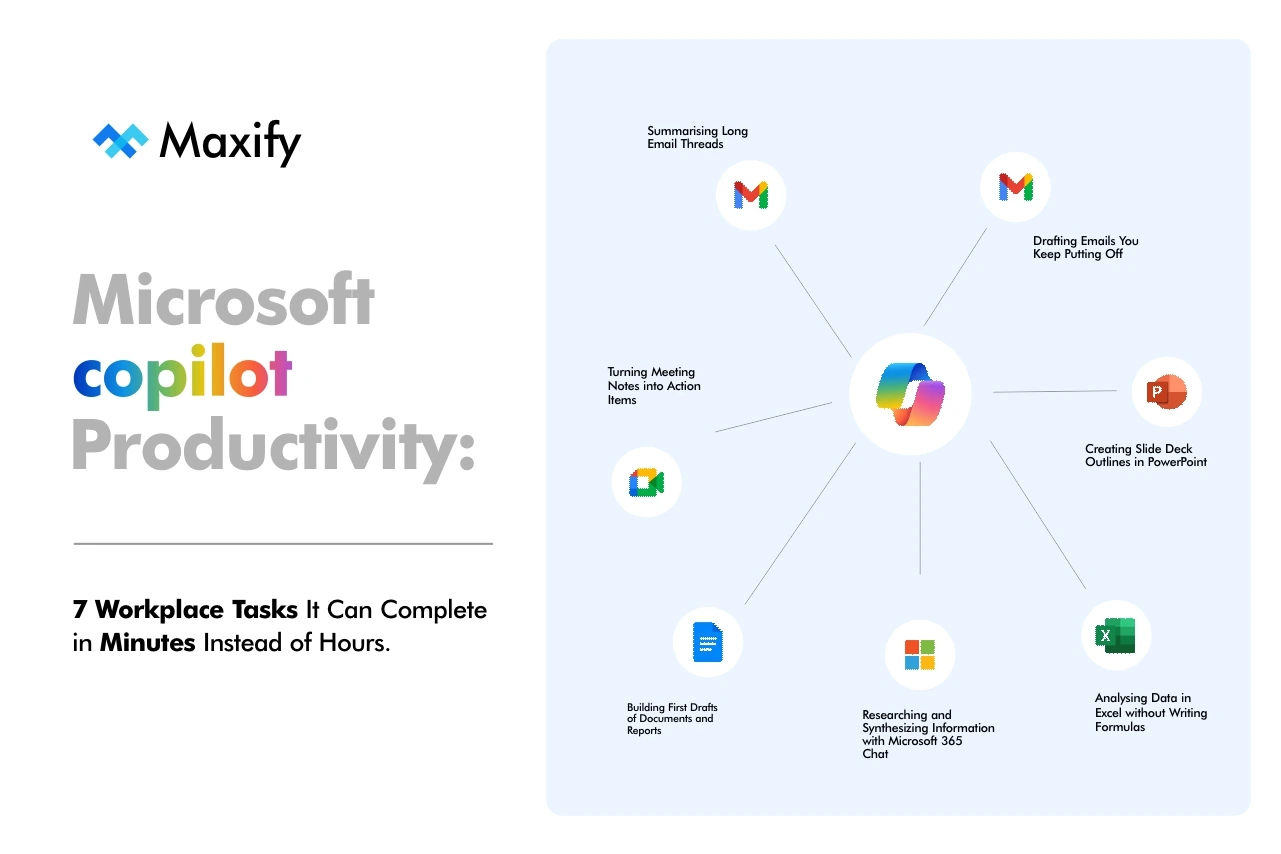
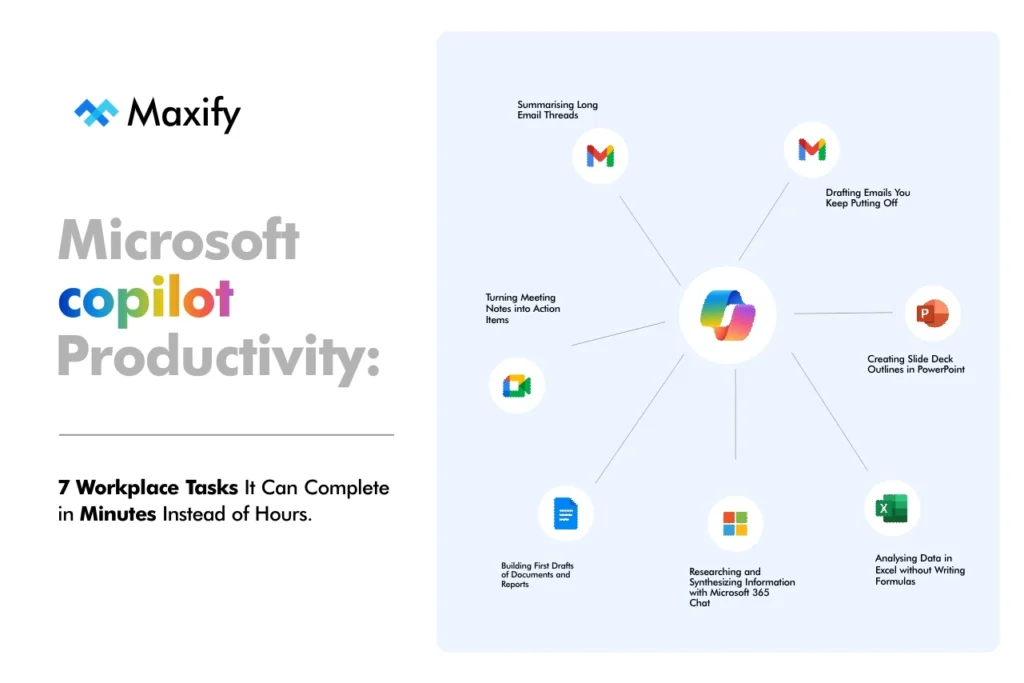
Most professionals who start using Copilot spend the first few weeks asking it the wrong things. They treat it like a search engine or a novelty. The ones who get real results figure out quickly that Microsoft Copilot productivity gains come from offloading the tasks that eat your day quietly, not the big projects, but the recurring, administrative, draining work that adds up to hours every week.
Here are seven of those tasks, with the prompts and approaches that actually work.
1. Drafting Emails You Keep Putting Off
You know the ones. The email to a difficult stakeholder. The follow-up after a meeting that went sideways. The update you owe three people and cannot find the right tone for.
Copilot in Outlook handles these well when you give it enough context. The mistake most people make is writing a vague prompt like “write a professional email to my manager.” That produces something generic you will rewrite anyway.
A prompt that works:
“Draft an email to my client informing them we are pushing the project deadline by two weeks due to a resourcing issue. Keep it factual, take ownership without over-apologising, and end with a proposed new timeline.”
You get a draft worth editing, not starting from scratch.
2. Summarising Long Email Threads
This is one of the most immediate wins. A thread with forty replies from five different people across three time zones. You need to know what was decided, what is outstanding, and who said what.
Copilot in Outlook can summarise entire threads in seconds. Open the thread, click Summarise, and you get a structured overview: decisions made, open questions, next steps. What used to require fifteen minutes of scrolling takes thirty seconds.
The summary is not perfect every time, especially if the thread drifted off-topic. But it gives you enough to respond intelligently or decide whether the thread needs your attention at all.
3. Turning Meeting Notes into Action Items
Most professionals leave meetings and either spend twenty minutes writing up notes or, more honestly, they let the notes slip and follow up based on memory.
Copilot in Teams captures and transcribes meetings, then generates a summary that includes who said what, what was agreed, and what the next actions are. You can even ask it specific questions after the meeting:
“What did we decide about the Q3 budget?”
“List all the tasks that were assigned and to whom.”
This is where Microsoft Copilot productivity shifts from nice-to-have to genuinely structural. When your team trusts that meetings are captured accurately, the quality of decisions and follow-through improves.
4. Building First Drafts of Documents and Reports
Copilot in Word does not write your reports for you. That framing sets people up to be disappointed. What it does is get you past the blank page with a working structure and draft content you can reshape.
The prompt matters here more than anywhere else.
Weak prompt: “Write a report about our marketing performance.”
Strong prompt:
“Write a first draft of a monthly marketing report for a senior leadership audience. Include sections for: campaign highlights, leads generated, conversion rate, challenges faced, and next month’s focus areas. Use a direct, executive-friendly tone. Leave placeholders where specific data needs to be inserted.”
You get a document you can work with in under two minutes. The edits are faster than the writing would have been.
| Task | Without Copilot | With Copilot |
| First draft of a 2-page report | 60 to 90 minutes | 10 to 15 minutes |
| Email thread summary | 15 to 20 minutes | Under 1 minute |
| Meeting action item write-up | 20 to 30 minutes | Under 2 minutes |
| Slide deck outline | 30 to 45 minutes | 5 to 10 minutes |
5. Creating Slide Deck Outlines in PowerPoint
Presenting to leadership or a new client without a clear structure is a problem most people solve by spending hours rearranging slides. Copilot in PowerPoint helps you build a logical skeleton before you start building anything visually.
Start in Word with your prompt:
“Create an outline for a 10-slide presentation introducing our new customer onboarding process to internal teams. Include: the problem we are solving, the new process steps, roles and responsibilities, timeline, and how success will be measured.”
Take that outline into PowerPoint, ask Copilot to generate slides from it, then redesign and refine. You are editing, not building from zero. That difference alone saves significant time. For deeper guidance on how Copilot integrates across Microsoft 365 apps, Microsoft’s official Copilot documentation is worth bookmarking.
6. Analysing Data in Excel without Writing Formulas
What This Actually Looks Like in Practice
Excel is where a lot of professionals hit a ceiling. You know what insight you need. You do not know which formula to write or how to structure the analysis.
Copilot in Excel lets you describe what you want in plain language:
“Show me which product category had the highest average sales in Q2.”
“Highlight any rows where the return rate exceeded 10%.”
“Create a chart comparing revenue by region across the last three months.”
It writes the formulas, creates the visualizations, and flags patterns. You do not need to know pivot tables to get pivot table results.
A Note on Data Quality
Copilot in Excel works best with clean, structured data. If your spreadsheet has merged cells, inconsistent formatting, or multiple header rows, the results get messy. Cleaning the data first, even briefly, makes the output significantly better.
7. Researching and Synthesizing Information with Microsoft 365 Chat
Copilot chat, accessible across Microsoft 365, can search across your files, emails, and meetings to pull together information you would otherwise hunt down manually.
Practical example: you are preparing for a client meeting and want to know what was discussed in the last two calls, what documents were shared, and what is still outstanding. Instead of clicking through folders and email threads:
“Summarize everything related to [client name] from the last 30 days, including emails, meeting notes, and shared documents.”
This works because Copilot has access to your Microsoft 365 environment with your permissions. It is not searching the web; it is searching your own workspace. The time saving here depends on how disorganized your digital environment is, but for most professionals, it cuts research time by more than half.
Frequently Asked Questions
Does Microsoft Copilot work offline? No. Copilot requires an internet connection and an active Microsoft 365 subscription with Copilot licensing. It processes requests via Microsoft’s cloud infrastructure, so connectivity is essential for all features.
Which Microsoft 365 apps support Copilot right now? Copilot is integrated into Word, Excel, PowerPoint, Outlook, Teams, and Microsoft 365 Chat (formerly Bing Chat for Enterprise). The depth of integration varies by app, with Teams and Outlook currently offering the most mature features.
Is my company data safe when using Copilot? Microsoft has built Copilot on the same compliance and security framework as the rest of Microsoft 365. Your data stays within your organization’s tenant and is not used to train public models. That said, it is worth confirming your organization’s specific data governance policies before use.
Do I need technical skills to get good results from Copilot? No. The main skill you need is the ability to write a clear, specific prompt. The more context you give Copilot about what you want, the tone you need, and the audience you are writing for, the better the output.
Can Copilot replace my assistant or team members? No, and framing it that way misses the point. Copilot handles the mechanical, time-consuming layers of knowledge work. The judgment, relationships, and strategic thinking still sit with people. It makes individuals significantly more productive; it does not replace roles.
What is the biggest mistake people make when starting with Copilot? Writing prompts that are too vague. “Write a report” will produce something generic. “Write a two-page summary of our Q2 performance for a CFO audience, focusing on cost efficiency and revenue variance” will produce something useful.
How long does it take to see real productivity gains? Most professionals notice a difference within the first week if they commit to using it consistently for the tasks listed above. The learning curve is shallow; the main adjustment is building the habit of going to Copilot before you start a task yourself.
The shift that matters most
The professionals who get the most from Copilot are not the ones who are most impressed by it. They are the ones who use it routinely for the unglamorous work: the draft no one wants to start, the thread no one wants to read, the data no one wants to dig through.
Microsoft Copilot productivity is not about doing something new. It is about doing what you already do, faster and with less friction, so your attention goes where it actually counts.
Ready to get more out of your Microsoft 365 subscription? Start by picking one task from this list and running it through Copilot today. Not next week. Today.
Want help setting up Copilot for your team or building prompting workflows that stick? Get in touch and we can walk through what will work for your specific environment.
